
Add to Chrome
Free to install · No account needed
Add to ChromeYOUR VIDEO. YOUR PACE.
Less waiting. More watching.
Watch lectures faster. Slow videos down to catch the details. Control playback speed with a simple, free browser extension.
Free to install · No account needed
Trusted by 3,000,000+ users worldwide
Read user reviewsAdjust playback speed on major video platforms and smaller websites. Compatibility depends on the video player used by each site.
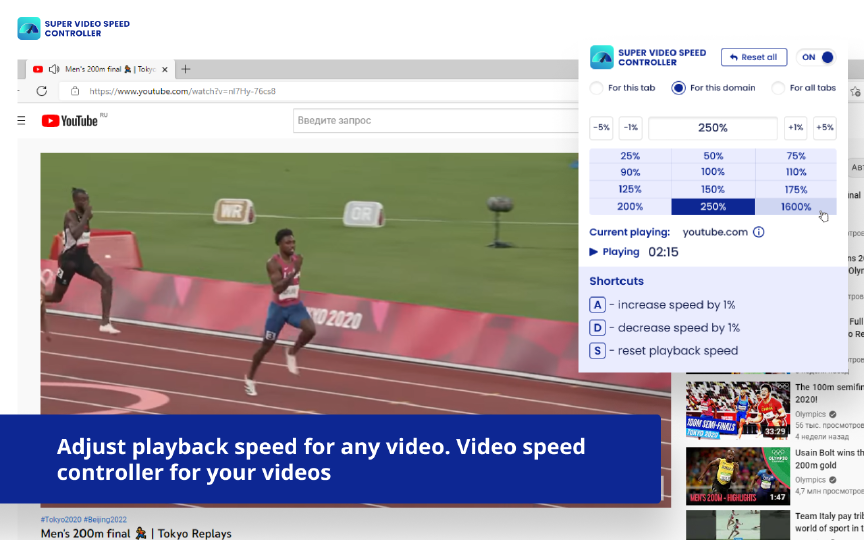
Choose the pace that suits you. Enter a custom percentage for more precise control than the fixed speed options available in many video players.
Press A to increase speed by 1%, D to decrease it by 1%, or S to reset playback speed.
Open the Chrome Web Store and add Super Video Speed Controller to your browser. You can also install it in Microsoft Edge from the Chrome Web Store.
Click the puzzle-piece icon in your browser toolbar, then select Super Video Speed Controller to open its controls.
Open a video in the current tab and start playback.
Choose a preset or enter a custom percentage in the extension window. You can also use the keyboard shortcuts.
Try a playback speed
Video length → Your watch time
Super Video Speed Controller is a browser extension for speeding up or slowing down online videos. Choose a preset or enter a custom speed as a percentage. Use it to get through lectures faster or take your time with tricky parts of a tutorial. Open the extension from the puzzle-piece icon in your browser toolbar.
CHROME & EDGE
Free to install · No account needed
Add to ChromeAlso works in Microsoft Edge. Install directly from the Chrome Web Store. If prompted, allow extensions from other stores.
Open Chrome Web StoreFAQ
Watch videos at your own pace with finer control than the fixed speed options in many video players. Keyboard shortcuts let you adjust the speed while watching.
Open the settings in the YouTube player and choose a playback speed. You can also adjust the speed from the Super Video Speed Controller extension window.
Yes. Super Video Speed Controller is free to install and use. You can find it in the Chrome Web Store.
Before installing, review the permissions and privacy information in the Chrome Web Store. Manage website access in your browser’s extension settings.
Install Super Video Speed Controller and start a video. Open the extension from the puzzle-piece icon in your browser and choose the speed you want.
Start the video and check that the extension has permission to access the website. Then reload the page. Some websites and video players restrict how extensions can interact with them.
Super Video Speed Controller offers percentage-based speed controls and keyboard shortcuts. Read its description and recent reviews in the Chrome Web Store to see whether it fits your needs.
A small extension. A better way to watch.